How to Enable/Disable DHCP on HS-80D Boarding pass Printer
1. Run Setup Tool & Test Communication
you can download the tools from our hsprinter.com website.
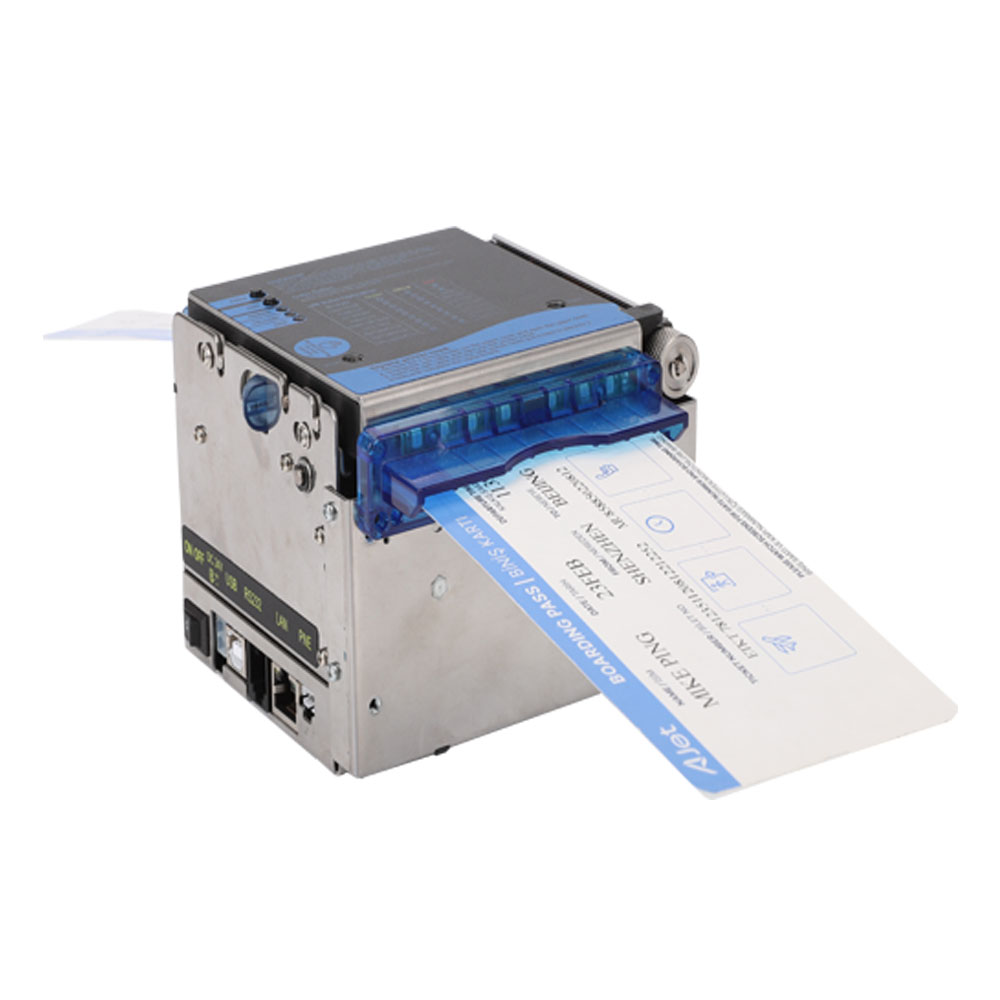
- Launch the 80D printer setup tool
- Select the printer connection mode
- Click Test Communication
- Enter configuration parameters after successful connection


2. Enable or Disable DHCP
Disable DHCP
- Go to Product Settings
- Enter custom HEX command: 8C00
- Click Settings to apply
Enable DHCP
- Go to Product Settings
- Enter custom HEX command: 8C01
- Click Settings to apply
3. Network & IP Settings

- Open Network Settings
- Enable the network port
- Set IP address, subnet mask, gateway, MAC address and port
- Ensure the printer is on the same network segment
4. Restart & Verify
- Restart the 80D printer
- Print a self-test page
- Check DHCP status and network parameters


Comments
Post a Comment